Multi-Camera Livestream Production for Events: Engage Remote Audiences
What makes remote attendees want to keep watching? With multi camera livestream production for events, the goal isn’t simply to add more angles. It’s to show a speaker’s delivery, capture audience responses and help online viewers follow each moment of the programme.
A single static shot can make even a well-planned event feel distant. Remote attendees may see the stage but miss the interactions and transitions that help them feel connected to the room. A considered camera setup can bring those moments into view, provided each shot has a purpose and switching follows the show cues.
This guide explains how to match camera positions and vision switching to different event moments, keep remote viewers connected to the people on stage and plan a production workflow with clear responsibilities. You’ll also learn why rehearsing transitions and coordinating cameras, audio and cues matter. The aim is a composed viewing experience that supports participation without adding complexity for its own sake.
Table of Contents
Why multi-camera livestream production matters for hybrid event engagement
How camera choices and vision switching shape the remote viewing experience
How to balance remote engagement with a clean, reliable livestream
How to plan multi-camera livestream production around audience moments
Choosing multi-camera livestream production support for your event
Why multi-camera livestream production matters for hybrid event engagement
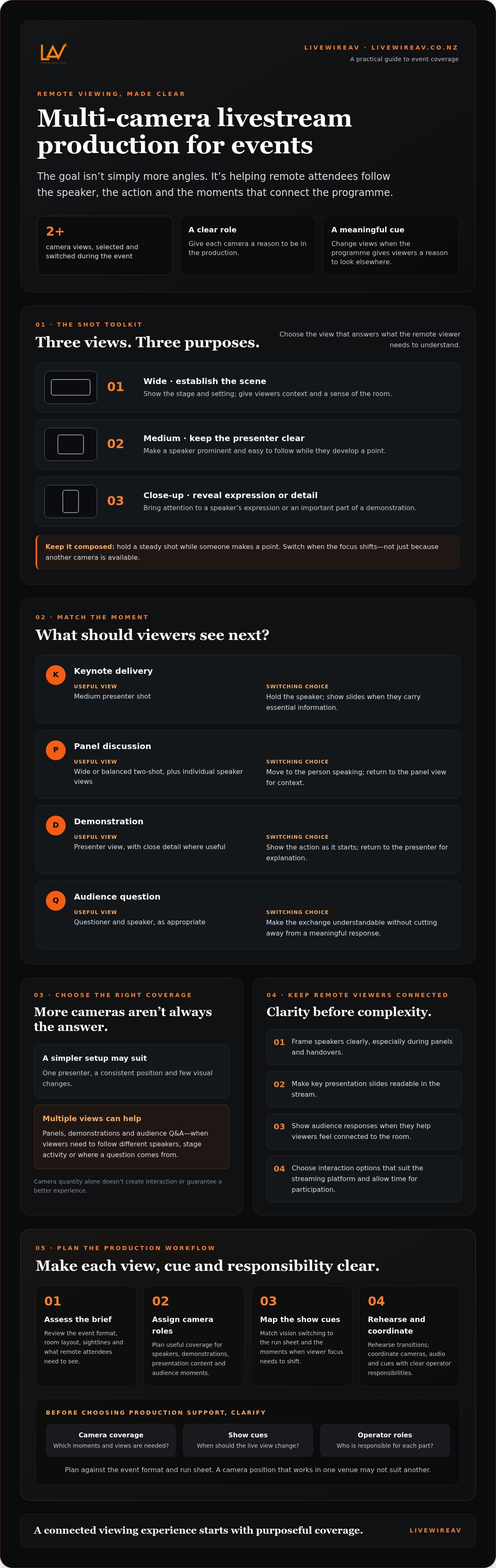
Multi-camera livestream production uses two or more camera views, selected and switched during an event, to create a live programme for remote viewers. Unlike a single fixed camera feed, it can show different perspectives, including the speaker, presentation content and audience, as the programme unfolds.
Choosing the right view helps online attendees understand not only what’s being said, but how each moment fits into the event. A clear, closer shot can make a speaker easier to follow, while a view of the room can show audience responses. Each shot works best when it serves a specific purpose, rather than being used simply because another camera is available.
The technique is part of a broader multiple-camera setup, where several camera feeds capture a scene from different angles. For a hybrid event, the production team selects which feed remote viewers see. Camera quantity alone doesn’t create interaction or guarantee a better experience. Relevant coverage, considered switching and a clear programme remain essential.
What remote attendees need from a live event feed
Start with clarity. A well-framed speaker shot helps viewers identify who’s talking, particularly during a panel or presenter handover. When slides carry key information, make sure they’re readable in the stream. A demonstration may need a closer view of the action, while a wider room shot can provide context and show audience reactions.
Visual variety supports attention when it follows the programme. Holding a steady shot while someone makes a point often feels more natural than cutting constantly. Change views when the focus shifts, such as from a presenter to a demonstration or a question from the floor. The aim is a feed that feels connected to the room, not busy.
When does an event benefit from multiple cameras?
A session with one presenter, a consistent position and few visual changes may be clear with a simpler camera setup. Panels, demonstrations and audience Q&A create more viewing needs: remote viewers may need to see different speakers, follow activity on stage or understand where a question is coming from.
Assess the brief before deciding. Consider the programme format, room layout, sightlines and what remote attendees need to see. A camera position that works in one venue may not suit another. Multi camera livestream production for events is most useful when each view supports a planned moment. Simpler coverage may be a better fit for a straightforward session.
How camera choices and vision switching shape the remote viewing experience
Each camera view should answer a viewer’s question: who’s speaking, what’s happening, or how does this moment relate to the room? A wide shot establishes the stage and setting. A medium shot keeps a presenter clear and easy to read. A close-up draws attention to a speaker’s expression or a detail in a demonstration. Selecting the right hardware is equally vital for clean visual capture; broadcast specialists such as United Broadcast & Media Solutions (UBMS) detail how digital camera technology and optics benefit live productions. Choose views for their purpose, then switch when the programme gives viewers a reason to look elsewhere.
Which camera shots work for speakers, panels and demonstrations?
For a keynote or direct-to-camera remark, use a clear presenter shot that keeps the speaker prominent. A balanced two-shot or wider panel view helps remote attendees see how panellists relate to one another. A closer shot can then make it clear who has the floor. For a demonstration, show detail when it helps explain the action. If that detail is essential, check that it’s visible in the stream, not just from seats in the room.
The guide below links common event moments to useful coverage. The best choice depends on the stage layout, sightlines and what viewers need to follow.
How should a vision switcher follow the programme?
A vision switcher selects between camera feeds and presentation content to build the live programme viewers see. The vision mixer coordinates changes with show cues, so transitions support the action rather than interrupt it. Plan for speaker handovers, slide changes, demonstrations and audience questions. Avoid switching away from information viewers need or a response that gives the moment meaning.
Before production, confirm the streaming platform, signal path and required content formats with the technical team. These details affect how camera and presentation feeds are routed and switched. For broader planning, see this guide to hybrid conference AV setup. Organisers can also discuss a tailored approach to hybrid and livestream event production that fits their programme and venue.
How to balance remote engagement with a clean, reliable livestream
Remote interaction works best when it has a clear place in the programme. Q&A, polls and chat can help online attendees contribute, but only if the streaming platform supports the feature and someone is responsible for managing it. Confirm platform capabilities with the production team during planning rather than assuming every tool will be available on the day.
This is part of the wider discipline of multi-camera production techniques: technical operation, programme cues and audience needs have to work together. The aim isn’t to keep viewers interacting constantly. It’s to make participation feel considered while keeping the event easy to follow.
Which interaction methods suit different event formats?
Match the tool to the session. Moderated questions suit conferences, panels and expert discussions, where a host can select relevant contributions and pass them to the presenter. Polls work well when the organiser has a specific question and time to share or discuss the results. Chat can support informal responses, but it needs an assigned moderator and clear expectations about what will be answered and when.
Each method also needs an agreed route to the stage. Decide who reviews incoming questions, who selects them and how the presenter or host receives them. This might involve a cue from the moderator or a prepared prompt during a planned Q&A segment. Keep the handover simple and clear to the people who need to act on it.
How can organisers prevent interaction from disrupting the show?
Build interaction windows into the run sheet instead of letting them compete with every programme moment. Name the person responsible for cueing each segment, and allow the host time to introduce the activity, gather responses and close it before the next item begins. For multi camera livestream production for events, share these cues with the production team so the on-screen content stays aligned with the programme.
Set a moderation process: Review questions for relevance, group similar topics and agree how selected questions reach the presenter.
Rehearse the handover: Test the cue between moderator, host and production team, including how the next segment begins.
Agree a fallback: Decide what happens if a platform feature or audience feed isn’t available, such as moving to pre-selected questions or continuing with the scheduled programme.
These checks reduce uncertainty, but can’t guarantee uninterrupted delivery. Confirm the interaction tools and signal path in advance, test the workflow during rehearsal and make sure everyone knows who to contact if something changes. Clear roles help the team respond calmly while keeping remote attendees informed.
How to plan multi-camera livestream production around audience moments
Plan coverage from the remote attendee’s point of view, then connect each important moment to a camera position, presentation feed or interaction cue. This keeps production focused on what viewers need to follow, rather than treating camera setup as a separate technical task.
1. Set the audience objectives. Decide what remote attendees should be able to see, hear and take part in. A keynote may call for clear speaker coverage and readable slides; a Q&A may need a way to bring questions into the programme.
2. Map key moments. Work through the run sheet and note speaker changes, slide transitions, demonstrations, audience questions and breaks. For each, identify the useful camera position or presentation content and whether an interaction cue is needed.
3. Check the venue. Review the room layout, stage sightlines and practical camera positions. Confirm where cabling can run and whether venue-specific restrictions affect camera placement, access or equipment locations. A technical site visit can help identify these details before production.
4. Assign responsibilities. Make clear who directs, switches, presents and moderates. Agree how the team will communicate cues during the show, including who can approve a change if the programme shifts.
5. Rehearse and check. Practise key transitions and confirm that each cue is understood by the people responsible for carrying it out.
Build camera and interaction cues into the run sheet
Make the run sheet useful to both the event team and production crew. Mark when a presenter takes over, a slide changes, a demonstration begins or remote questions are brought in. Add the cue, the responsible person and the next action to reduce guesswork during the live programme. Rehearse changes involving multiple roles, such as a moderator passing a question to the host while the production team prepares the relevant view.
What should the production team check before going live?
Before streaming, check camera framing and focus, confirm that speakers are picked up clearly, and review presentation feeds for legibility in the remote output. The event’s technical team should also confirm the streaming route and platform settings. For multi camera livestream production for events, these checks connect the venue setup with what online attendees will actually receive.
Agree on a practical contingency plan. Identify who makes decisions if a feed, platform feature or piece of content isn’t available, and what the team will use instead. Clear escalation steps help the crew respond without adding uncertainty to the programme.
For a production plan shaped around your venue, run sheet and remote audience, discuss your hybrid and livestream event with LivewireAV.
Choosing multi-camera livestream production support for your event
The right production support should make technical decisions easier to assess, not leave you guessing about how the stream will work. Look for a provider who can explain how the proposed camera coverage serves your event format and remote audience, and how the plan connects with the run sheet, venue and show cues. Established commercial studios such as The Photography Co demonstrate how aligning multi-camera hardware, dedicated audio feeds and live switching creates a seamless broadcast.
What should you ask a livestream production provider?
Ask practical questions that show how the team will coordinate production:
How does the camera plan support key moments? Ask which views are intended for speaker changes, panel discussions, demonstrations and audience questions, and why.
Who is responsible for each role? Confirm who operates the cameras, manages vision switching and communicates with presenters or the event team when cues change.
How will technical requirements be confirmed? Discuss the streaming platform, camera configuration, venue layout, presentation feeds and any restrictions that could affect the setup.
What happens if a planned feed or feature isn’t available? Agree on practical alternatives and who can make decisions during a live issue.
Clear answers help you compare proposals on more than equipment. They show whether camera coverage, switching and programme cues have been considered together, and whether responsibilities are understood before the event begins.
How LivewireAV can support multi-camera event livestreams
LivewireAV provides hybrid and livestream event production, including camera packages and vision switching. These capabilities can be coordinated with experienced technical operators who manage live event cues and equipment. The right approach depends on the event brief, so confirm camera configurations, platform requirements and audience interaction options for your specific event.
For a useful provider discussion, share the event format, venue details, run sheet and what remote attendees need to see or take part in. This gives the production team a practical basis for shaping camera coverage and responsibilities around the programme, rather than adding complexity without a clear purpose.
Planning a hybrid or livestream event? Discuss livestream production for your event with LivewireAV and outline your audience needs, venue and run sheet.
Make every camera choice count for your remote audience
A considered multi-camera livestream production for events gives remote attendees views that help them follow the programme and feel connected to the people in the room. The value comes from matching camera positions and switching cues to meaningful moments, not simply adding more cameras.
Plan interaction around the run sheet, with clear responsibilities for moderating questions, cueing presenters and managing production. Rehearsal and practical checks help the team prepare for transitions and respond if a planned feed or feature isn’t available.
LivewireAV provides hybrid and livestream event production, with camera packages, vision switching and experienced event technicians and operators to coordinate live cues and equipment. A discussion about your event format, venue, audience needs and run sheet can help shape a production plan that fits the programme.
Discuss multi-camera livestream production for your event with LivewireAV. With clear planning and purposeful coverage, remote attendees can feel more involved from the first cue to the final session.
Frequently Asked Questions
How many cameras do you need for a hybrid event livestream?
Choose the number of cameras based on the programme, room layout and views remote attendees need. A straightforward presentation may work with a simple setup, while a panel, demonstration or audience Q&A may benefit from additional angles. Two well-positioned cameras can be more useful than adding another camera without a clear role. Map key moments first, then decide which coverage supports them.
Do multiple cameras make a livestream more engaging?
Multiple cameras can make a livestream easier to follow, but extra angles alone don’t make viewers feel involved. A clear speaker view, a useful shot of a demonstration or a glimpse of audience response can help online attendees understand what’s happening. Engagement also depends on programme pacing and opportunities to participate. Switch views with purpose, and avoid cutting so often that the stream feels distracting.
How do you keep remote audiences engaged during a hybrid event?
Help remote attendees follow the programme and take part at planned points. Use clear speaker framing, show presentation content when it carries essential information, and include moderated Q&A, polls or chat if the platform supports them. Schedule interaction windows and assign someone to manage responses. Explain how viewers can contribute and when questions will be addressed, so participation fits the programme rather than interrupting it.
What does a vision switcher do during a livestream?
A vision switcher selects which live camera feed or presentation source appears in the livestream. The operator follows the run sheet and show cues, switching views when the speaker changes, a demonstration begins or the programme moves to slides. Thoughtful switching helps remote viewers follow the action. It should preserve important information and meaningful responses, rather than cutting away simply to create visual variety.
Can a hybrid event use audience Q&A in its livestream?
Yes, a hybrid event can include remote audience Q&A if the chosen platform supports the required feature. Plan who will review and select questions, how they’ll reach the host or presenter, and when they’ll be answered. A moderator can group similar questions and help keep the session on track. Rehearse the handover and agree on an alternative, such as prepared questions, if the feature or audience feed isn’t available.
What should be included in a multi-camera livestream production plan?
A multi camera livestream production plan should connect audience needs with practical production decisions. Include the event format, run sheet, venue layout, camera positions, presentation content, interaction cues and responsibilities for directing, switching, presenting and moderating. Confirm platform requirements and the streaming route with the technical team. Add rehearsal checks for framing, focus, audio and slide legibility, plus agreed actions and decision-makers for live issues.
Comments